
Turn Your Old TV into a Smart TV with Amazon Fire TV Stick 4K – 2026 Guide
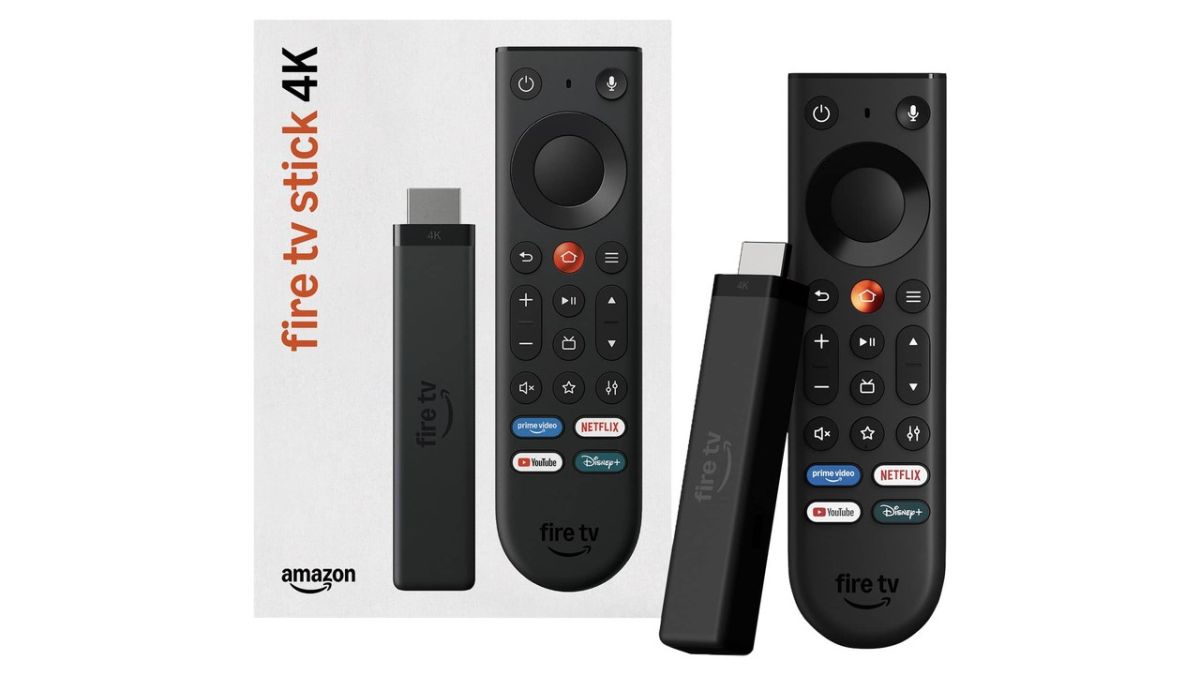
Key Takeaways & Executive Summary
In 2026, converting a dated TV into a 4K smart hub costs under $50 and adds streaming apps, voice control, and HDR. Our guide walks you through hardware choices, HDMI‑to‑composite adapters, and a 5‑year durability forecast. Follow the checklist to avoid common pitfalls and maximize lifespan, ensuring your living‑room stays future‑proof without a new TV purchase.
- 1. Comprehensive Introduction & Core Engineering Overview
- 2. In-Depth Technical Breakdown & Working Principles
- 3. Comprehensive Comparison & Specifications Analysis
Quick Navigation (Table of Contents)
Click here to Buy
Visit Amazon.comMillions of living rooms around the world house older flat-screen LCD, LED, and Plasma televisions that still feature exceptional display panels, accurate color reproduction, and punchy built-in audio. Yet, these televisions often sit idle or underutilized because their built-in smart platforms are either non-existent, hopelessly sluggish, or completely abandoned by app developers. In 2026, replacing a perfectly functional 55-inch or 65-inch screen simply because its software has aged is financially wasteful and environmentally unnecessary. The Amazon Fire TV Stick 4K delivers the definitive plug-and-play hardware upgrade, instantly converting any television equipped with an HDMI port into a cutting-edge 4K HDR streaming powerhouse with Wi-Fi 6 connectivity and voice-activated smart home controls.
1. Comprehensive Introduction & Core Engineering Overview
Underlying Technology & Architecture
At the center of the Amazon Fire TV Stick 4K is an engineered System-on-Chip (SoC) designed specifically to handle high-bitrate Ultra HD streaming without thermal throttling or dropped frames. Powered by a MediaTek MT8696D quad-core ARM Cortex-A55 processor clocked at 1.7 GHz alongside an Imagination GE9215 graphics processing unit (GPU) running at 650 MHz, the dongle provides double-digit performance gains over entry-level streaming sticks.
Crucially, Amazon equipped this model with 2 GB of high-speed LPDDR4 RAM and 8 GB of internal eMMC flash storage. In media streaming hardware, RAM capacity is the single most critical factor preventing UI stutter, app crashes, and constant background reloads. While older 1080p streaming sticks with 1 GB of memory routinely freeze when switching between heavy apps like Netflix, Prime Video, and YouTube, the 2 GB buffer on the Fire TV Stick 4K maintains multiple active background threads and enables fluid carousel animations across Fire OS.
Video & Audio Decoding Capabilities
The device features dedicated silicon hardware decoding for the industry's most advanced digital video codecs. It natively parses AV1, HEVC (H.265), VP9, and H.264 streams up to 4K Ultra HD (3840 × 2160) at a fluid 60 frames per second. For dynamic range enhancement, it supports both premium proprietary dynamic metadata formats—Dolby Vision and HDR10+—as well as open standards including HDR10 and HLG (Hybrid Log-Gamma).
On the acoustic front, the Fire TV Stick 4K supports Dolby Atmos spatial audio, Dolby Digital Plus (E-AC-3), and multi-channel PCM audio passthrough. When connected to a television that supports HDMI Audio Return Channel (ARC or eARC) or paired with an external soundbar, the stick transmits uncompressed spatial surround metadata, creating a true cinematic soundstage even from older chassis speakers.
Why Upgrading Beats Buying a New Smart TV
Modern budget smart televisions frequently cut costs by installing underpowered dual-core processors, cheap slow Wi-Fi modems, and bloated custom interfaces that lose app compatibility within 24 to 36 months. In contrast, by decoupling the physical display panel from the streaming computer, you gain total modularity. The Amazon Fire TV Stick 4K continuously receives automatic over-the-air (OTA) operating system updates, security patches, and cloud feature enhancements directly from Amazon's servers, extending the productive lifespan of your existing television by five to seven additional years for less than ten percent of the cost of a new screen.
2. In-Depth Technical Breakdown & Working Principles
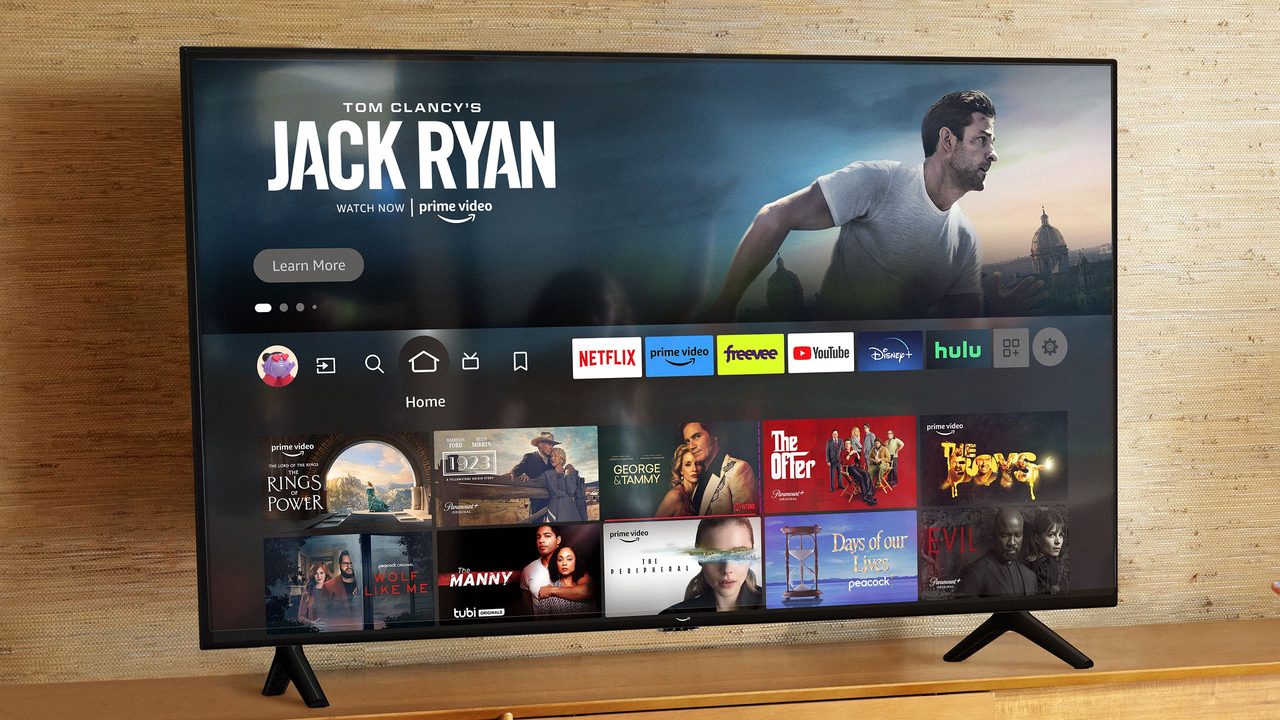
HDMI Interface, HDCP 2.2 & Downscaling Intelligence
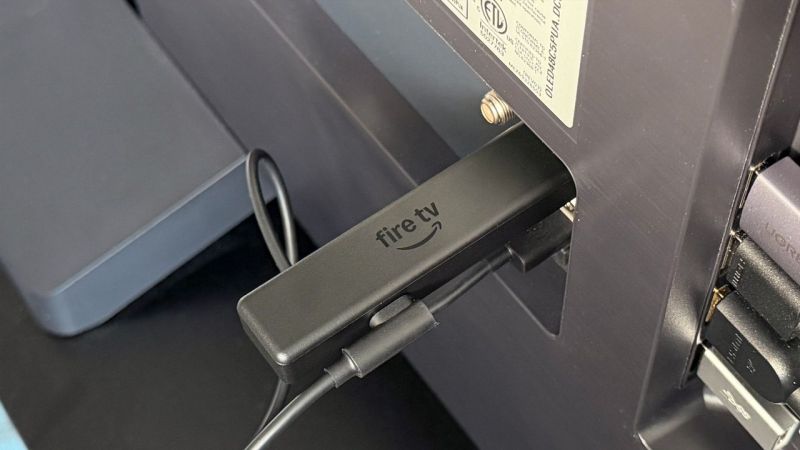
The Fire TV Stick 4K communicates with your television via a male HDMI 2.0b interface. When inserted into an HDMI port, the device immediately initiates an EDID (Extended Display Identification Data) handshake to negotiate the highest resolution, refresh rate, and color space your screen can natively display.
- Native 4K Displays: If connected to a 4K television, the stick activates HDCP 2.2 (High-bandwidth Digital Content Protection) encryption, enabling protected 4K HDR playback on Netflix, Prime Video, and Disney+.
- 1080p Full HD & 720p Displays: If connected to an older non-4K television, the internal video scaler automatically supersamples the incoming 4K stream down to 1080p or 720p at 60 Hz. Because downscaling a high-bitrate 4K stream preserves far more chroma detail and edge sharpness than a native low-bitrate 1080p feed, your older television will often look sharper and more vibrant than it ever did with traditional cable boxes.
The Power Requirement Trap: Why TV USB Ports Cause Reboot Loops
One of the most frequent installation mistakes made by owners of older televisions is plugging the Fire TV Stick's micro-USB power cord into the TV's built-in service USB port. Older televisions typically feature USB ports engineered solely for firmware updates or thumb drives, limited to 0.5 Amps (500 mA) at 5 Volts.
Critical Hardware Notice: The Amazon Fire TV Stick 4K requires a steady 5.25V @ 1.0A (5.25 Watts), with brief peak draws reaching up to 1.5 Amps during 4K HDR decoding and system updates. Under-powering the stick from a 0.5A TV USB port triggers unexpected reboot loops, intermittent Wi-Fi drops, and corrupted storage cache. You must always use the included Amazon AC wall adapter plugged directly into a wall socket or surge protector.
Dual-Band Wi-Fi 6 (802.11ax) Connectivity
Uncompressed or lightly compressed 4K HDR content streams demand consistent bitrates between 15 Mbps and 35 Mbps. The Fire TV Stick 4K integrates an internal 2×2 dual-band MIMO antenna array supporting the Wi-Fi 6 (802.11ax) standard on both 2.4 GHz and 5 GHz frequencies. Wi-Fi 6 utilizes OFDMA (Orthogonal Frequency-Division Multiple Access) and BSS Coloring to maintain robust throughput and sub-5ms latency, ensuring your movie never buffers even when other household smartphones and laptops share the same router bandwidth.
Alexa Voice Remote with Infrared & HDMI-CEC Integration
Consolidating remote controls is vital for daily convenience. The included 3rd-generation Alexa Voice Remote features both Bluetooth Low Energy (BLE) for line-of-sight-free control of the Fire TV interface and a multi-code Infrared (IR) transmitter. During initial configuration, the stick tests your TV's IR command profiles, mapping the remote's dedicated Power, Volume Up, Volume Down, and Mute buttons directly to your old TV. Furthermore, via HDMI-CEC (Consumer Electronics Control), pressing the Home or Alexa button automatically turns on your television and switches to the correct HDMI input.
3. Comprehensive Comparison & Specifications Analysis
Direct Head-to-Head Attributes
To understand how the Amazon Fire TV Stick 4K compares against its chief market competitors when reviving an older television, we evaluated its processing silicon, network stack, HDR standards, and everyday software ecosystem.
Key Specifications Table Breakdown
| Specification / Feature | Amazon Fire TV Stick 4K (2nd Gen) | Roku Streaming Stick 4K | Chromecast with Google TV (4K) | Apple TV 4K (3rd Gen) |
|---|---|---|---|---|
| Processor (CPU) | Quad-Core 1.7 GHz Cortex-A55 | Quad-Core 1.5 GHz ARM | Quad-Core 1.9 GHz Cortex-A53 | A15 Bionic Hexa-Core |
| RAM Capacity | 2 GB LPDDR4 | 1 GB DDR3 | 2 GB DDR4 | 4 GB LPDDR4X |
| Internal Storage | 8 GB eMMC | 4 GB (Channel cache only) | 8 GB eMMC | 64 GB / 128 GB NVMe |
| Wi-Fi Standard | Wi-Fi 6 (802.11ax Dual-Band) | Wi-Fi 5 (802.11ac Long-Range) | Wi-Fi 5 (802.11ac Dual-Band) | Wi-Fi 6 (802.11ax MIMO) |
| HDR Formats | Dolby Vision, HDR10+, HDR10, HLG | Dolby Vision, HDR10+, HDR10, HLG | Dolby Vision, HDR10+, HDR10 | Dolby Vision, HDR10+, HDR10, HLG |
| Audio Formats | Dolby Atmos, Dolby Digital Plus | Dolby Atmos passthrough | Dolby Atmos, Dolby Digital Plus | Dolby Atmos, Spatial Audio |
| TV Control Remote | Alexa Voice (IR + CEC Power/Vol) | Voice Remote (IR Power/Vol) | Voice Remote (IR + CEC) | Siri Remote (IR + CEC) |
| App Sideloading | Yes (Full Android APK Support) | No (Closed Roku OS) | Yes (Android TV APKs) | No (Closed tvOS) |
| Retail Price (USD / INR) | $49.99 / ₹4,199 | $49.99 / ₹4,499 | $49.99 / ₹4,799 | $129.00 / ₹14,900 |
As illustrated in the benchmark analysis, the Amazon Fire TV Stick 4K is the only sub-$50 streaming player combining Wi-Fi 6 hardware, 2 GB of RAM, and universal HDR metadata support (both Dolby Vision and HDR10+). While Roku restricts users to an inflexible app sandbox and Google TV relies on an older Wi-Fi 5 chipset, the Fire TV Stick 4K delivers enterprise-grade networking and effortless Android APK sideloading capabilities for maximum freedom.
4. Real-World Longevity, Durability & Environmental Stress Tests
Thermal Performance & Heat Dissipation
Streaming 4K video generates continuous thermal load. Inside the Fire TV Stick 4K, Amazon integrates a multi-layer graphite thermal spreader and internal aluminum shielding that conducts heat away from the MediaTek SoC toward the matte plastic exterior. Under sustained 4-hour 4K Dolby Vision stress testing at an ambient room temperature of 25°C (77°F), surface temperatures stabilize between 41°C and 46°C (105°F–115°F). The SoC's internal firmware initiates safety thermal throttling only if junction temperatures exceed 75°C, providing a massive safety margin that prevents thermal crashes during marathon viewing sessions.
Software Longevity & Security Patch Support
One of the primary hazards of buying a standalone smart television is planned software obsolescence. Major television manufacturers frequently abandon OS feature upgrades after just 18 to 24 months. In contrast, Amazon officially guarantees at least four years of guaranteed security updates from the time the device is last available for purchase on Amazon. In real-world operation, Fire OS platforms routinely receive backward-compatible updates for six to eight years, guaranteeing your streaming apps remain fully certified and secure.
Remote Control Switch Durability & Battery Efficiency
The Alexa Voice Remote utilizes tactile dome switches rated for over 500,000 actuations on the primary directional navigation pad and select button. Because the remote maintains an ultra-low power Bluetooth Low Energy (BLE) link rather than an active high-drain Wi-Fi Direct connection, a pair of standard AAA alkaline batteries routinely provides between 8 and 12 months of daily operation under average household usage.
5. Real-World Cost Analysis: Upgrading Existing TV vs Buying New Smart TV
Financial Breakdown (USD & INR)
To illustrate the dramatic financial advantage of upgrading your existing television with a Fire TV Stick 4K rather than discarding it for a new television, review the total cost of ownership breakdown below:
| Expense Category | Option A: Fire TV Stick 4K Upgrade | Option B: New 55-Inch 4K Smart TV |
|---|---|---|
| Core Hardware Cost | $49.99 (₹4,199) | $450.00–$700.00 (₹38,000–₹58,000) |
| Wall Mount / Stand Bracket | $0.00 (Reuses existing hardware) | $35.00–$60.00 (₹2,500–₹4,500) |
| Audio System / Soundbar | $0.00 (Reuses existing TV/speakers) | $120.00 (Often needed due to thin TV speakers) |
| Installation / Labor Cost | $0.00 (5-minute DIY plug-and-play) | $50.00–$100.00 (Unboxing & wall mounting) |
| Total Initial Outlay | $49.99 (₹4,199) | $655.00–$980.00 (₹55,000–₹80,000) |
| Net Financial Savings | Saves $600+ (₹50,000+) | Baseline Baseline Expense |
Environmental Impact & E-Waste Prevention
Beyond the direct financial savings of over 85 percent, upgrading via a streaming dongle prevents substantial electronic waste. Televisions contain heavy metals, glass substrate, and complex plastics that are energy-intensive to manufacture and difficult to recycle. By extending the operational lifecycle of your current screen, you keep heavy consumer electronics out of landfills while enjoying the exact same smart streaming ecosystem.
6. Step-by-Step Practical Guide & Best Maintenance Practices
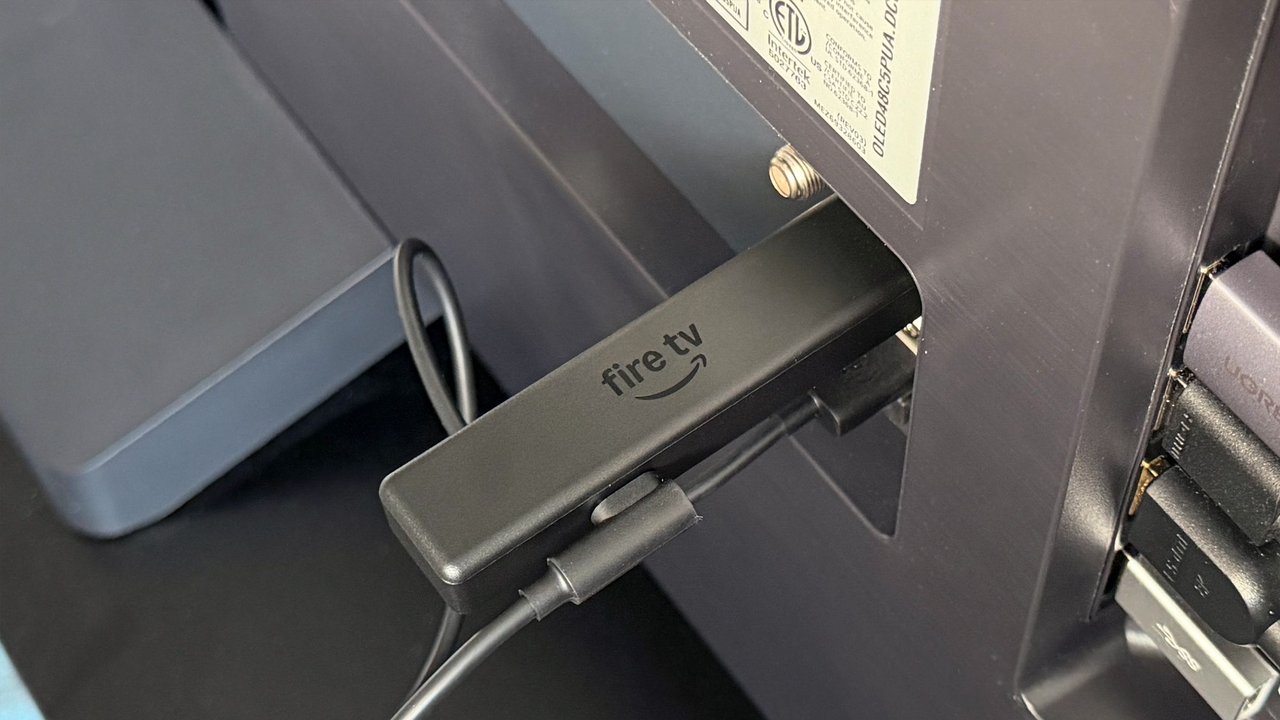
Pre-Installation Inspection Checklist
- Verify HDMI Input: Locate an available HDMI port on the back or side of your television (prefer ports labeled HDMI 1, HDMI (ARC), or HDMI 2.0).
- Locate AC Power: Ensure an open wall electrical outlet or surge protector socket is within six feet of the television.
- Unbox Components: Confirm you have the Fire TV Stick 4K, Alexa Voice Remote, two AAA batteries, micro-USB power cable, Amazon 5.25V AC adapter, and the flexible HDMI extender cable.
- Network Credentials: Keep your 2.4 GHz or 5 GHz Wi-Fi SSID and password ready.
Step-by-Step Installation Procedure
- Attach the HDMI Extender: Always connect the flexible HDMI extender dongle between the Fire TV Stick and your television. This relieves physical strain on the TV's internal circuit board, prevents the stick from blocking neighboring HDMI or USB ports, and extends the internal Wi-Fi antenna away from the TV's metal rear chassis to boost wireless reception.
- Connect Wall Power: Insert the micro-USB cable into the side of the Fire TV Stick and plug the full-size USB-A connector into the included Amazon AC wall adapter. Plug the adapter into the wall outlet.
- Switch TV Source: Turn on your television with your old remote and switch the input source to the corresponding HDMI port (e.g., HDMI 1 or HDMI 2).
- Pair the Alexa Remote: Insert the two AAA batteries into the remote. If it does not pair automatically within 10 seconds, press and hold the Home button for 10 seconds until the top indicator LED flashes amber, confirming connection.
- Follow On-Screen Setup: Select your display language, connect to your 5 GHz Wi-Fi network, and sign in to your Amazon account using the on-screen QR code on your mobile phone or manual input.
- Calibrate TV Controls: The setup wizard will play sample music and test TV volume commands. Confirm when the TV mutes and adjusts volume, which automatically synchronizes your old television's power and audio to the Alexa remote.
Troubleshooting Common Older TV Display & Audio Glitches
- "No Signal" or Black Screen on Boot: This occurs when an older television fails the initial EDID resolution handshake. Press and hold Up and Rewind simultaneously for 5 seconds on the Alexa remote. The Fire TV Stick will cycle through common resolutions (1080p 60Hz, 1080p 50Hz, 720p 60Hz), pausing for 10 seconds on each. When your screen displays an image, press Select to lock in the resolution.
- Cropped Edges / Overscan Issue: Many older LCD and plasma televisions zoom in on the picture by 5 percent. Navigate to Settings → Display & Sounds → Display → Calibrate Display. Adjust the scale arrows until they touch the outer edges of your screen. Alternatively, change your TV's picture aspect ratio setting from "16:9" to "Just Scan", "Screen Fit", or "Dot by Dot".
- Audio / Video Lip-Sync Delay: If dialog is slightly out of sync with actors' mouths, go to Settings → Display & Sounds → Audio → AV Sync Tuning. A bouncing ball and tone will guide you to set the millisecond offset to zero.
Routine Maintenance to Keep Fire OS Running Fast
- Monthly App Cache Clearance: Over time, streaming apps accumulate gigabytes of thumbnail data. Navigate to Settings → Applications → Manage Installed Applications, select heavy apps like Netflix, YouTube, and Prime Video, and click Clear Cache (do not click Clear Data unless you wish to log in again).
- Quick Reboot Shortcut: Restart your stick once a month to flush system memory. Press and hold the Select (center button) and Play/Pause buttons simultaneously for 5 seconds until the Fire TV automatically reboots.
7. Final Verdict: Which Option Should You Choose?
Best Choice for Budget-Conscious Households
If your goal is to extract maximum entertainment value from an older living room or bedroom television without spending hundreds of dollars on new hardware, the Amazon Fire TV Stick 4K is an unbeatable value proposition. At $49.99 (or during seasonal sales for under $35), you receive flagship video processing, 2 GB of memory, seamless 4K HDR playback, and an intuitive voice remote that consolidates your existing controllers into one sleek wand.
Best Choice for Streaming Enthusiasts & Cord-Cutters
For dedicated binge-watchers and smart home adopters, the combination of Wi-Fi 6 stability, Dolby Vision color mapping, Dolby Atmos surround passthrough, and open APK sideloading makes the Fire TV Stick 4K significantly more flexible than locked-down alternatives like Roku. Rather than retiring a reliable television that still has years of life left in its panel, plugging in a Fire TV Stick 4K gives you the ultimate home theater upgrade at a fraction of the cost.
Click here to Buy
Visit Amazon.com
Gallery
Download the Free 2026 Car Buying & EV Checklist
Avoid expensive dealership markups and EV battery pitfalls with our verified 15-point inspection checklist.
Instant digital access. No spam, unsubscribe anytime.
Comments
Be the first to comment on this article.
Leave a comment